Documentation
Creating Polls
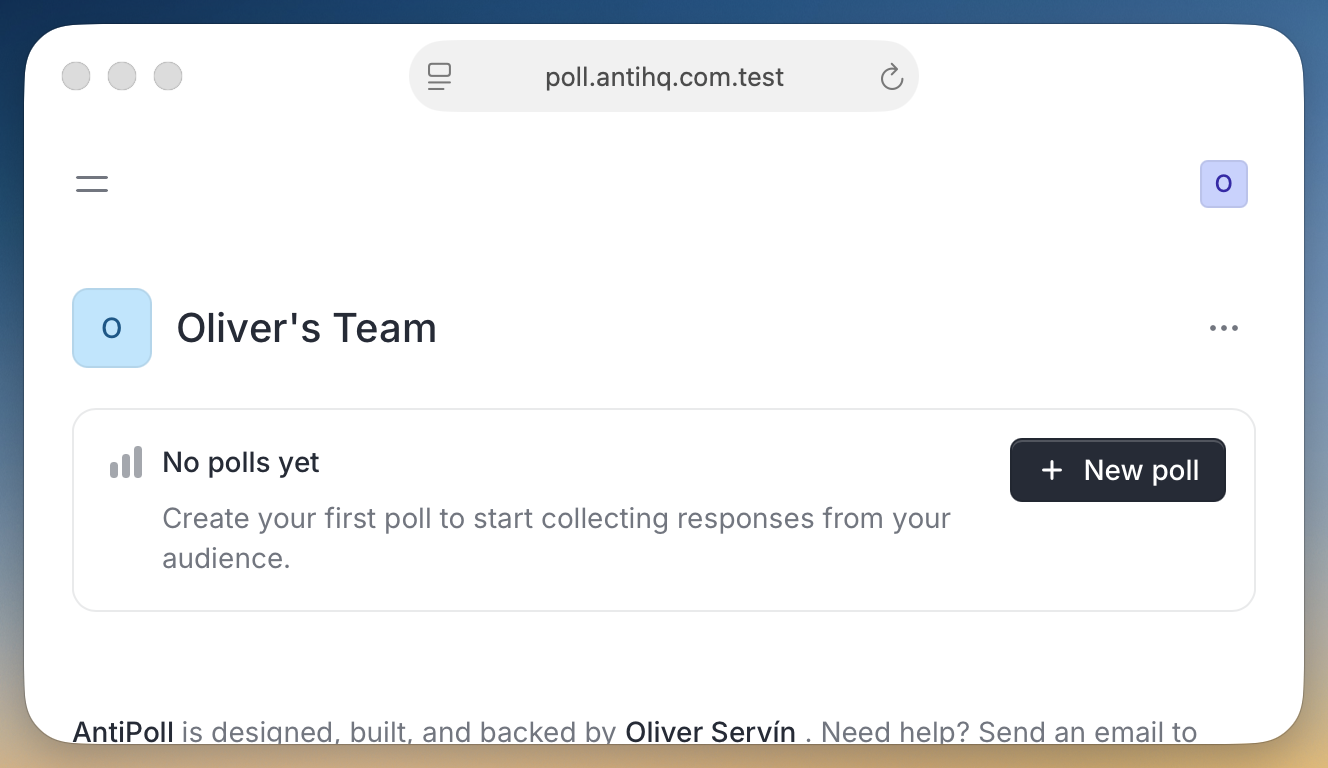
Add a New Poll
Creating polls is straightforward and flexible. From the dashboard or polls page, click
New poll
to get started.
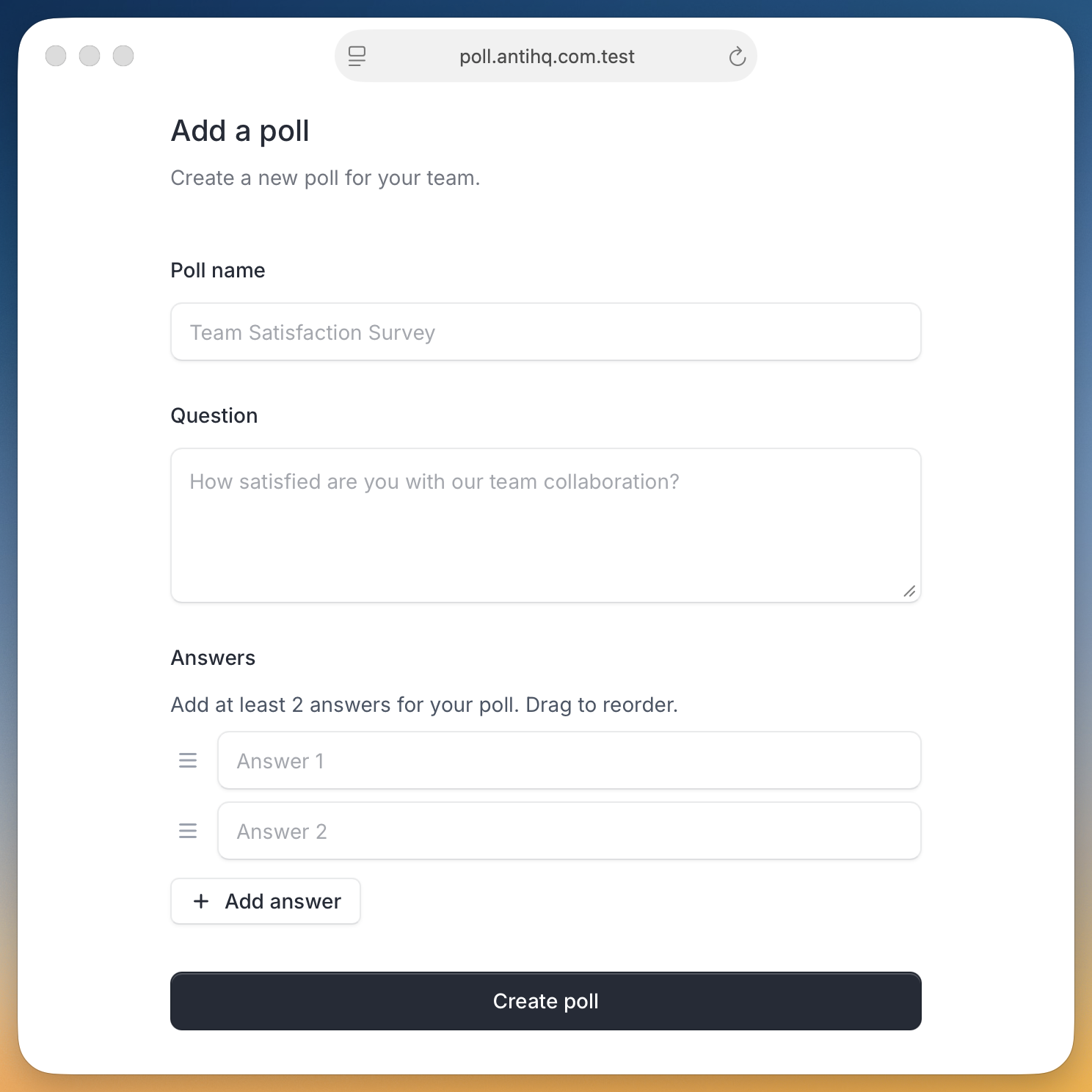
On the create poll page, you'll need to provide:
-
Poll name
- A descriptive title for your survey
-
Question
- The main question you want to ask
-
Answers
- At least two answer options
Managing Answers
-
Add answers
- Click "Add answer" to create more options
-
Remove answers
- Use the delete button (minimum 2 answers required)
-
Reorder answers
- Drag and drop answers to change their order
Each answer can be customized with individual settings like redirect URLs and feedback fields.
Poll Settings
After creating a poll, you can configure advanced settings to match your specific needs:
Response Settings
-
Accept responses
- Toggle whether the poll is currently active
-
Require email address
- Make email collection mandatory
-
Auto-submit responses
- Automatically submit when an answer is selected
-
Collect feedback
- Show a feedback field after submission
Display Settings
-
Layout
- Choose between vertical or horizontal answer arrangement
After Submission
Configure what happens after someone responds:
-
Show thank you message
- Display a custom message with optional button
-
Redirect to URL
- Automatically redirect users to a custom URL
Branding
-
Hide AntiPoll branding
- Remove AntiPoll branding for a white-label experience
